

Why is the “Shopify preview link” a time saver and why do you need to know about it? Because it makes life easier for you and for your clients as well.
Here are a couple of reasons why you need this feature in your toolset.
You want to use the “Shopify preview link” tool when you work on a new shop feature and you use a theme duplicate or a new theme that is not published yet.
Another reason is that from August 17, 2020 Shopify no longer allows any store to remove the offline page until you pay for a subscription.
Shopify allowed all stores created to that date to work as they were before the new rule since they do not impose the offline page on them.
For example your Shopify store is under a password page in offline mode and you need to give access to your client to check the store before it is launched or just to check for your work progress.
Normally, in order to allow access to your store you need to send to your client the link to the development store plus the password and an email with instructions on how to work with the store offline page (because sometimes some developers love to complicate things).
The client needs to come to your store, click the “Enter Using Password” button that is usually on all Shopify free themes, type the password and click “Enter”. Easy for you and easy for me right?
Well from a client point of view there are a lot of steps just to see the store.
Sometimes clients are not tech savvy (yes, not all of us are born with a tech device on our hands, and some of us really don’t care about tech stuff, they just need a job done and that’s it) so they will encounter problems or they will mistype the password because they do not understand how copy/paste works and so on.
They will get back to you frustrated with more questions and make you lose precious time for such a simple task which should be straight forward from the beginning.
What if you can just send to your client a simple link instead with the instructions to click on it to see their new store under development?
Welcome to the “Shopify Preview Link”.
The “Shopify Preview Link” is a link that you generate with a click of a button and send to your client to access the store by just clicking on it.
I’ll go step by step on how to access the tool and how to generate the link.
Published themes
Though this was possible before the 2025 Summer update, it is no longer possible to share link previews directly to the Live(Published) theme when this is password hidden.
If you want to share this with clients you need to give them the store password so they can bypass the password page that is blocking your live theme.
The only way left to share preview links in Shopify is for unpublished themes (draft theme).
One workaround I’ve found is that if you want to share the live theme and do not give the password to your client is to duplicate the published theme to an unpublished theme and share a copy of the live theme.
Through this method you can send just a preview link and do not force the client to go through all the long process of accessing the “Published” theme.
First you need to log-in in your Shopify admin and go to the “Online Store” channel:
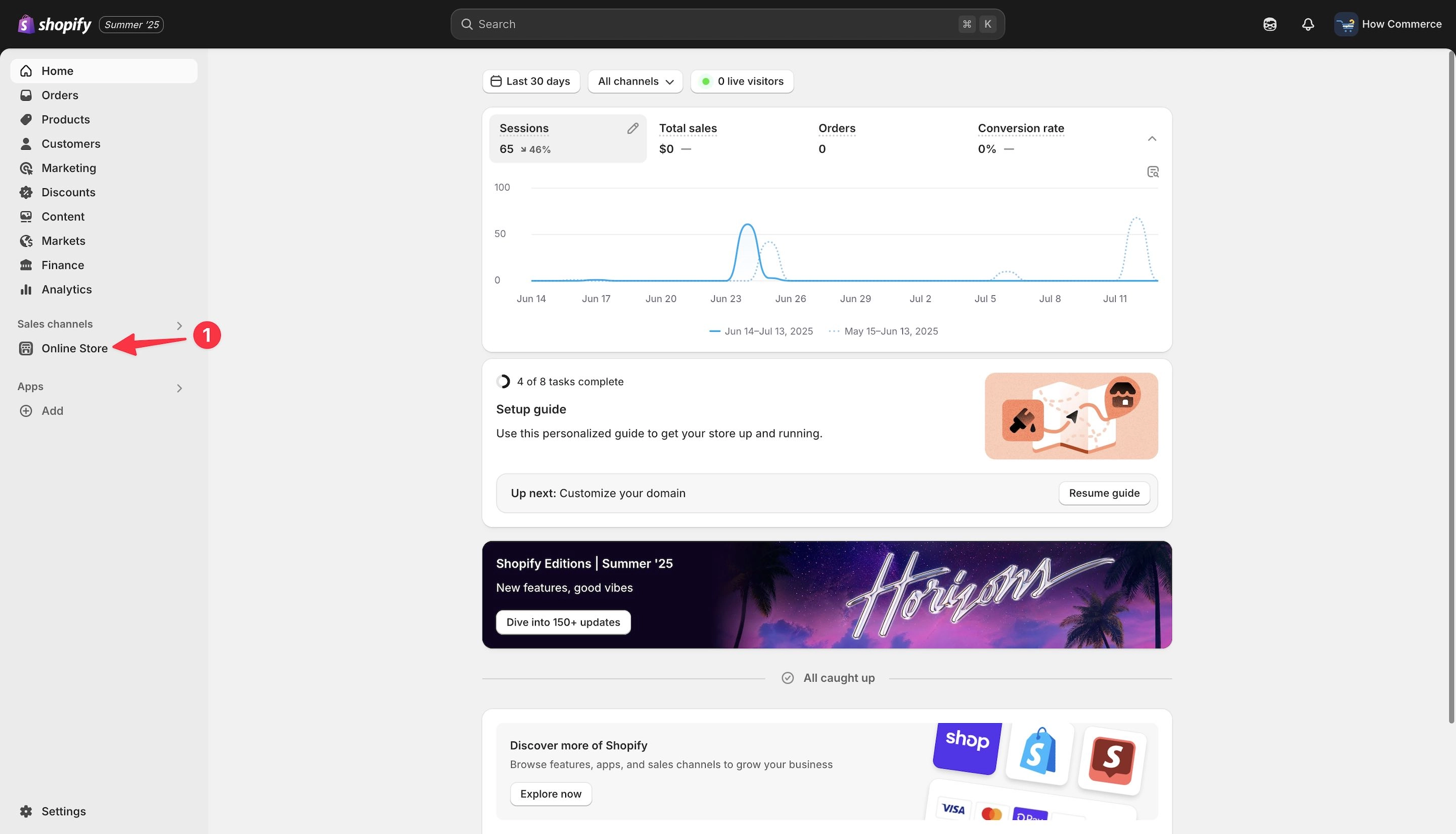
Once you click on the “Online Store” channel you’ll see the “Themes” page (marked with 1 in the image below) and the published theme which in my example is the “Horizon” theme:
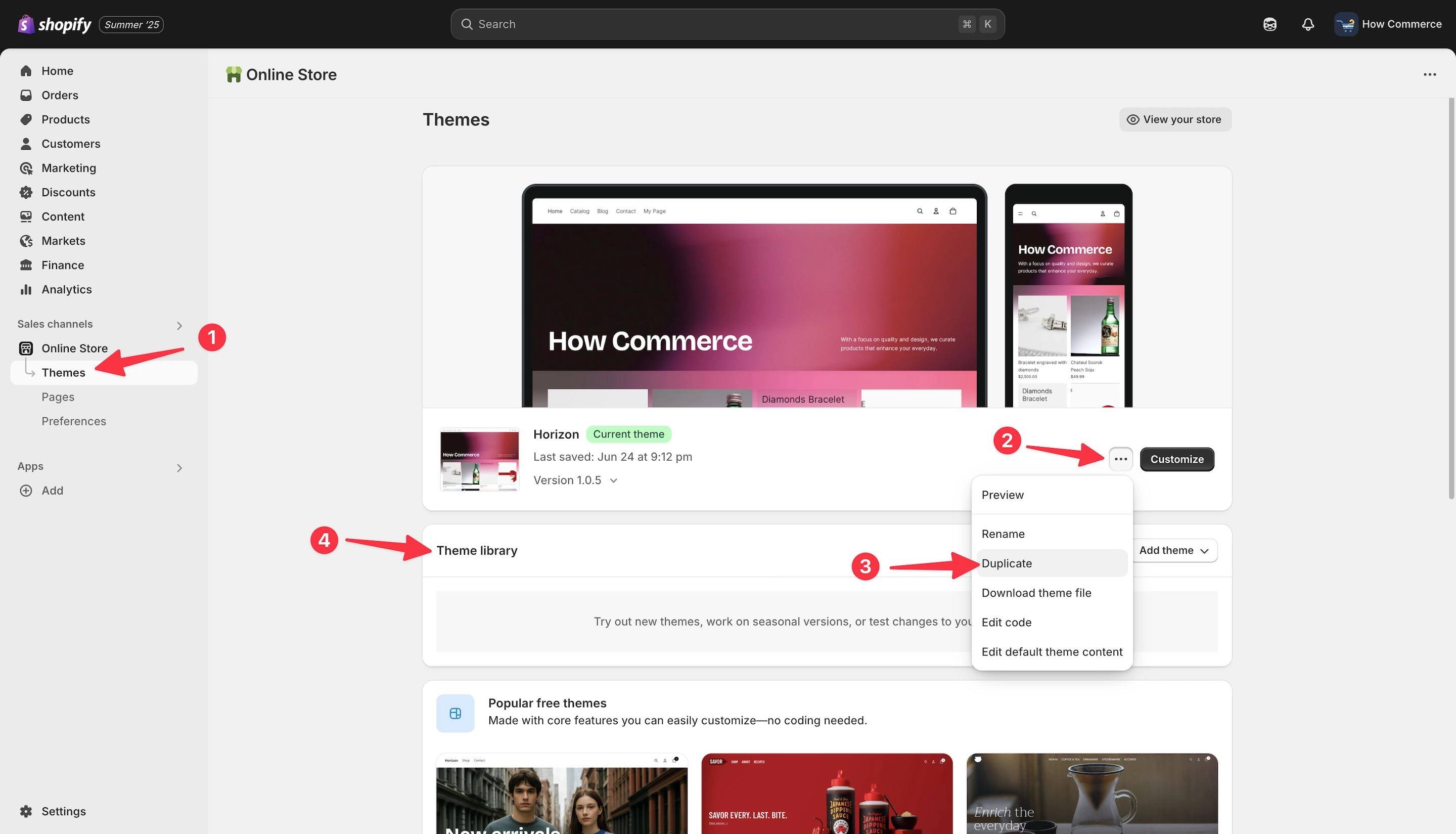
Click on the “...” (marked with 2 in the image above) a drop-down will open listing new options specifically for that theme. In our case it is the published theme, the one that customers see once they visit the store.
In the drop-down-menu where you can see the “Duplicate” option (marked with 3 in the image above) that will allow you to duplicate the theme. Select it and when for the theme to be duplicated.
Your duplicated theme will be listed under the “Theme Library” (marked with 4 in the image above).
Once the theme duplication is completed you’ll see under the “Theme Library” with the name “Copy of … “ and after the original theme name in my case is “Copy of Horizon” as seen in the image below (marked with 1).
Click on the “...” (marked with 2 in the image below) and on the drop-down click on the “preview” button (marked with 3 in the image below).
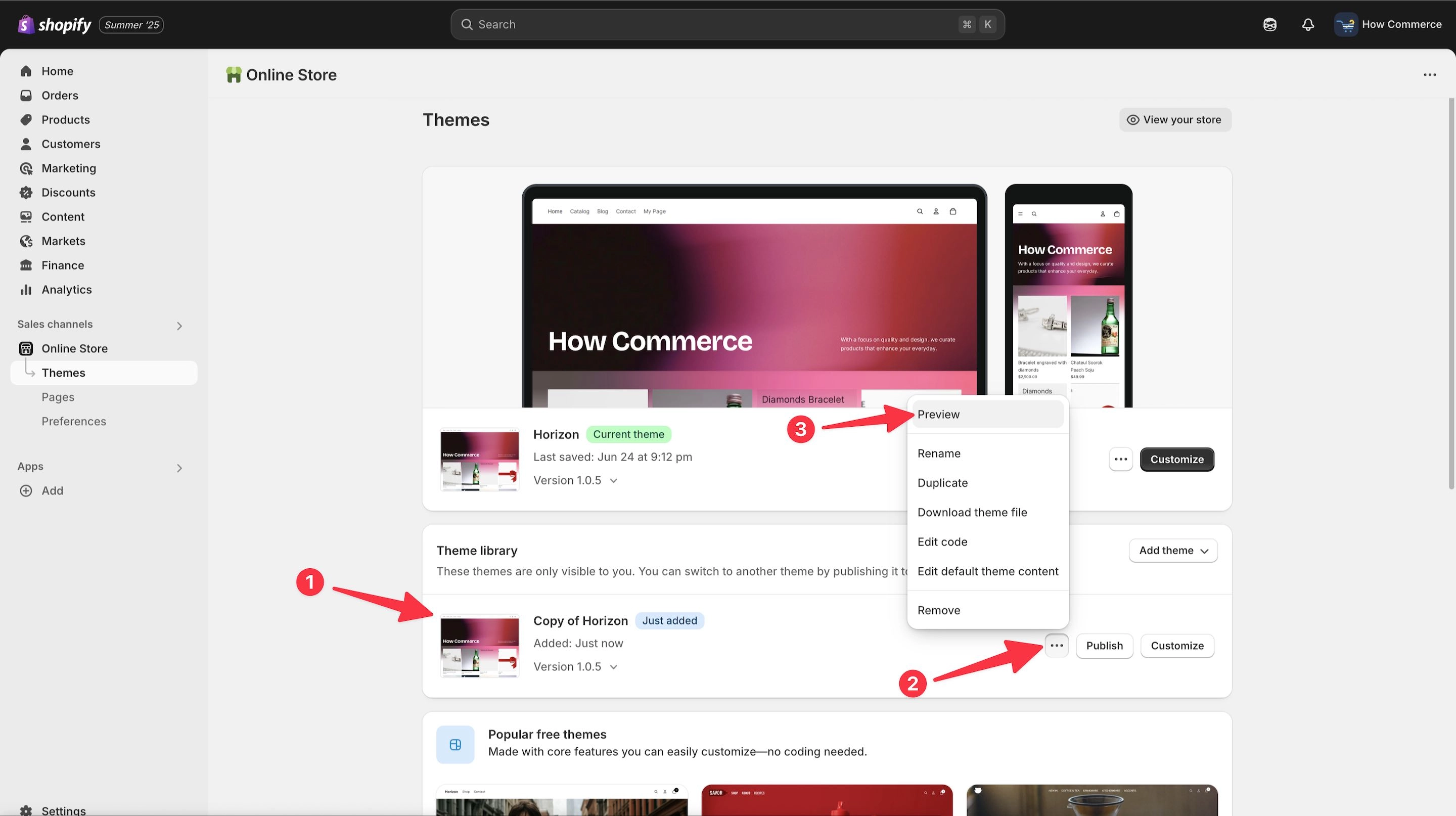
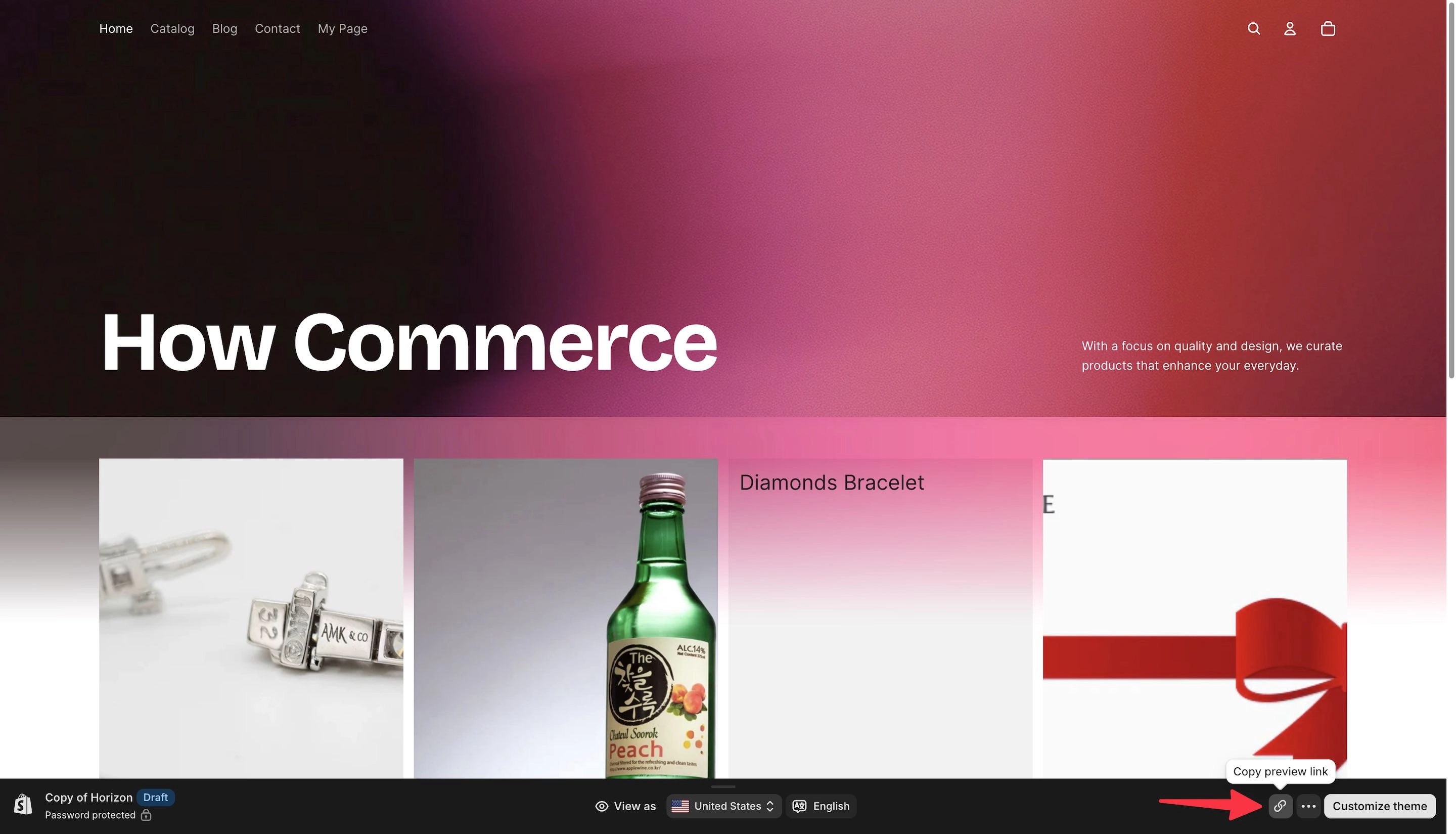
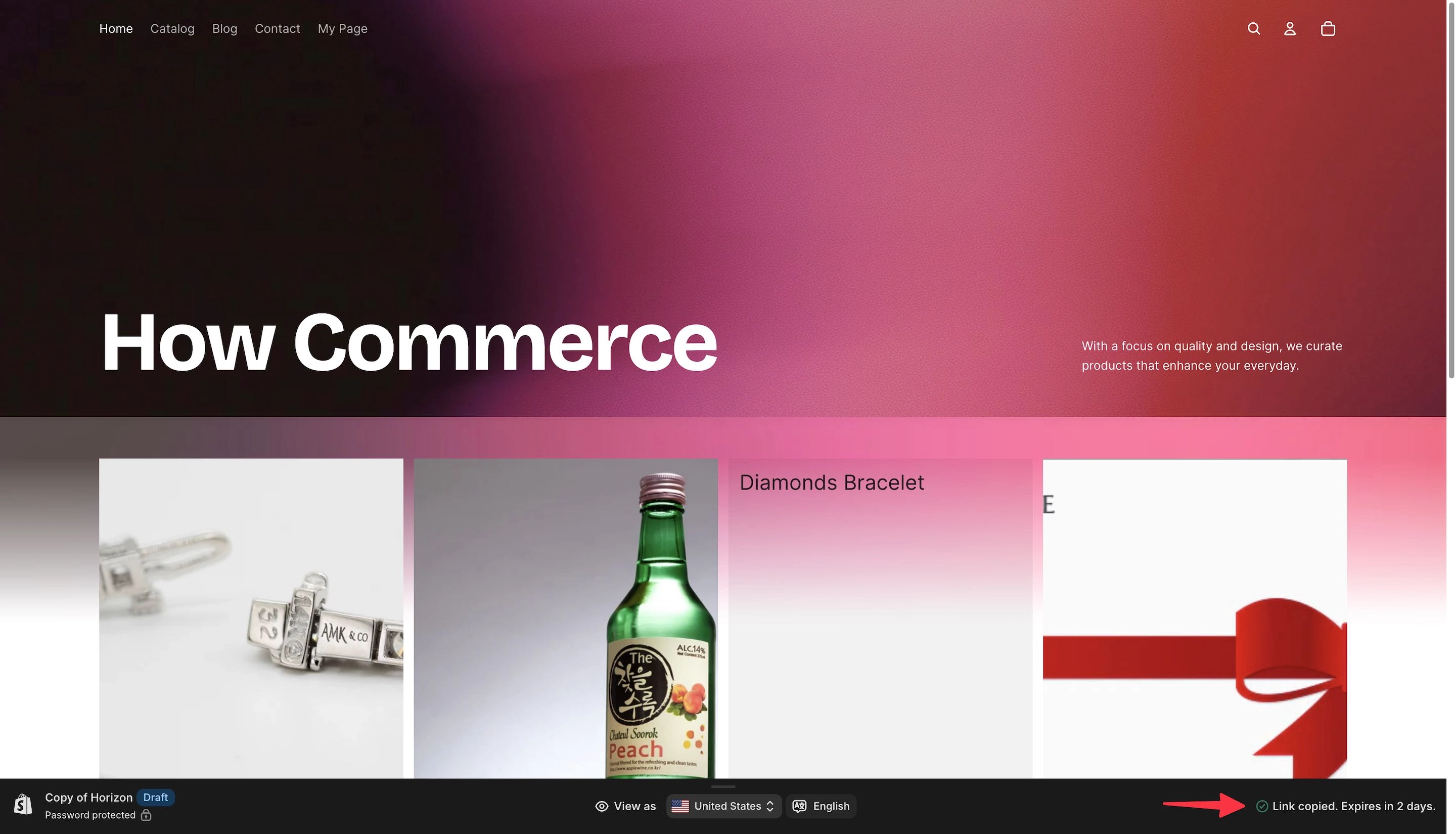
On the storefront you’ll see an admin bar listed at the bottom of the page and inside the preview link button.
Click on the “Copy preview link” button listed in the image below.
If you do not see the admin bar it is possible that you hide it. To put it back you need to clean your cookies.
A success message will be listed “Link copied. Expires in 2 days” like in the image below:
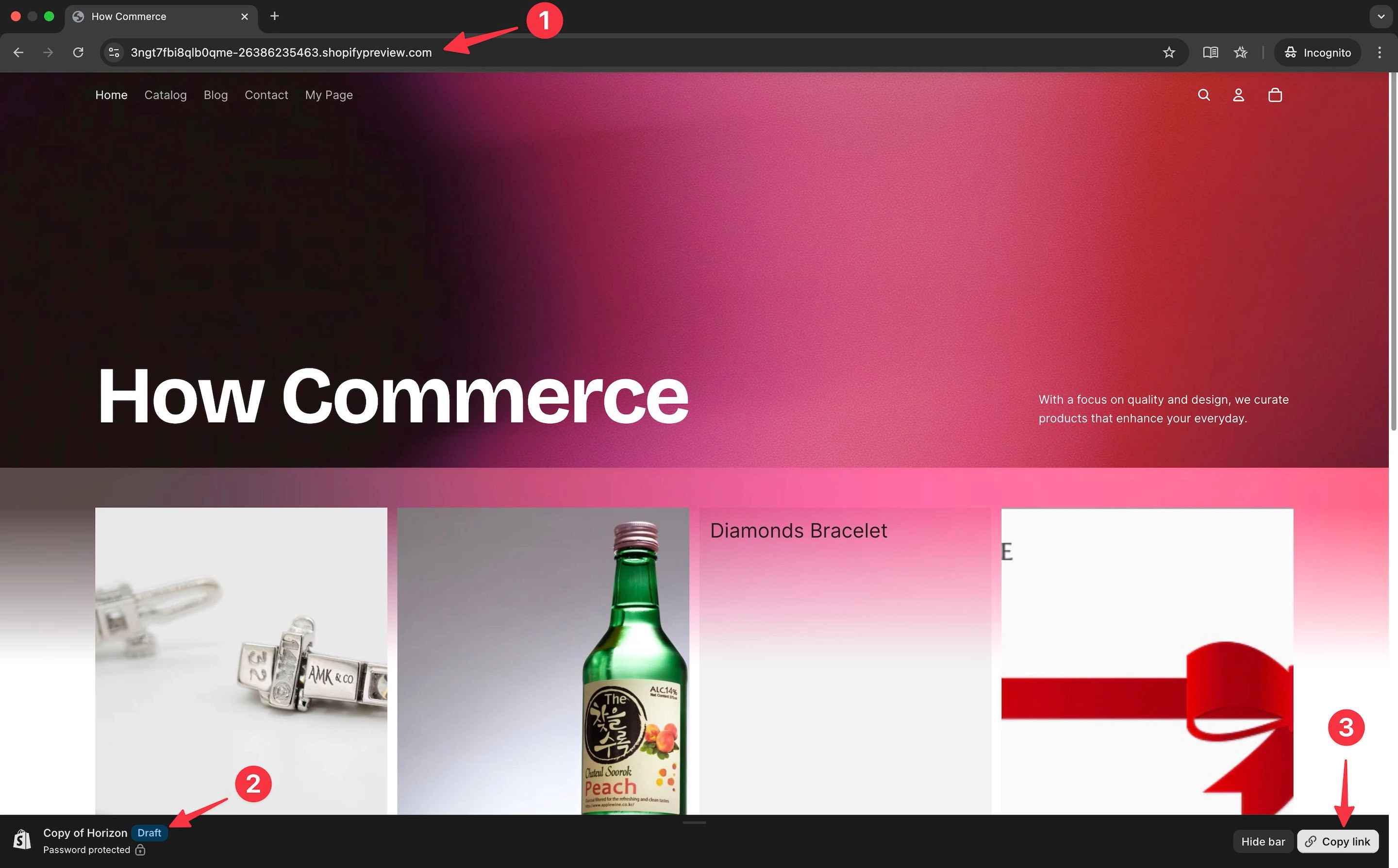
Now you can open a new tab in your browser and paste the preview link (marked with 1 in the image below).
As you see the “Copy of Horizon” name is listed and “Draft” theme next to it (marked with 2 in the image below).
In this preview your client or whoever you shared the link has an option to copy the link (marked with 3 in the image below) and share it with others.
The users that you’ll send the store preview link can do most of the operations on the store front-end like adding to cart and visiting different pages but they can’t see the checkout page.
If you need them to see the checkout page then you should add them as staff or you can always send the password to them and explain how they should login inside the development store.
Unpublished themes
The process is exactly the same for all unpublished themes in the “Theme library.”
The process is the same as for the published theme, and users that you send the store preview link to can do most operations on the store front-end, like adding to cart and visiting different pages, but they can’t see the checkout page.
If you need them to see the checkout page, then you should add them as staff, or you can always send the password to them and explain how they should log in to the development store.
In both cases, please note that the preview link is available for 2 days. After that, if your client needs to see the development store again, you need to generate a new one.
You may think that a 2-day timeframe is a bad thing.
No, it isn’t, as it creates a sense of urgency for your client to verify it within 2 days. Otherwise, the link will expire, and they will need to send you a new email requesting a new link.
They will have to wait for you to send the new link, and trust me, many clients dislike wasting time when they run a business.
In my experience, in 95% of cases when I’ve notified the client that they have 48 hours to verify the changes I’ve made for them, they usually check it within 24 hours.
Previously, with a 14-day period, some clients took a couple of days before verifying the changes.
I’m not sure if this was Shopify’s intention with shortening the time period for previews, but it works great.
Conclusion
Shopify preview links are a simple yet powerful tool for sharing access to your store with clients, collaborators, or testers, especially when your store is password protected or in development mode.
By generating a preview link, you streamline the review process, reduce confusion, and save time for everyone involved.
Remember that preview links expire after 2 days, so plan accordingly and communicate the timeframe to your clients.
For full access, including checkout, staff accounts or the store password may still be required.
Using preview links effectively helps ensure a smooth workflow and a better client experience during development and review.